Connecting to a NAS drive from a network connected Raspberry Pi is relatively simple. Here is how I did it with my Pi and the Soft-float Debian “wheezy” version of Linux.
Learn more about Raspberry Pi
|
Raspberry Pi Essential Training Build a Raspberry Pi Media Server Raspberry Pi: Home Monitoring and Control RetroPie: Building a Video Game Console with Raspberry Pi Raspberry Pi: GPIO |
Log into the Pi and do follow these steps:
- Enter in root mode by typing:
sudo –i - Install or update cifs by typing:
apt-get install cifs-utils - Create the following directory. We are going to mount the NAS drive to this directory.
- home/pi/myNAS/myShare (type:
mkdir myNAS) - Edit the file /etc/fstab by doing:
pico /etc/fstab - Add the following line to the bottom of the page:
//IP_of_device/name_of_device /home/pi/myNAS/myShare cifs workgroup=WORKGROUP,users,auto,user_xattr 0 0- The IP_of_device it that of your NAS device. In my case I have a USB drive connected to the router and therefore I use the IP address of the router here.
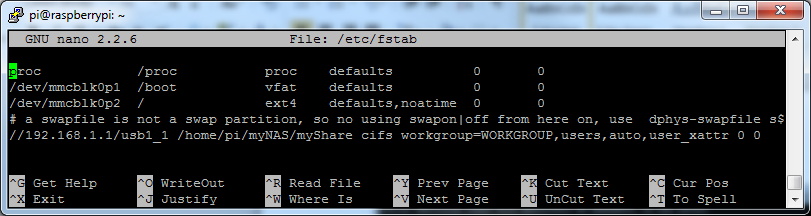
- The name_of_device in my case is called:
usb1_1 - If you have a username and password protecting the drive you should include them in the line as name value pairs separated by commas like this:
username=your_username,password=your_password - Navigate back to the root and mount the drive by typing:
mount –a - If it asks for a password enter it or press return if there isn’t one.
- Now the drive is mounted you can now access these files by doing:
cd /home/pi/myNAS/myShare/


 Read Learn Code
Leave a comment